📄 Top Article 📄
Millennia Game Review - A Little-known Strategy Gem! [...]
Author: Guru Game Guides[ Source: GameTikker ]
⇄ Latest Gaming News ⇆
Weekly Special
Warframe
Jade Shadows
Read more...
You may know The Stalker as a shadowy, Sentient-allied assassin who preys upon the Tenno on their Missions across
the Origin System. Before that, however, he was a Low Guardian who faithfully served the Orokin...
Our next update, Jade Shadows, gives you full control of The Stalker as a new protagonist during a dramatic cinematic Quest.
[ Source: Steam ]
 Super Nintendo World Is Coming To Universal’s Epic Universe [...]
[ Source: Uproxx ]
 Nintendo Switch 2 Leak - Magnetic Joy-Cons, 8-Inch Display, 4K Support [...]
[ Source: ExtremeTech ]
 Nvidia update makes it easier to install GeForce Now on Steam Deck [...]
[ Source: XDA ]
TL;DR Gaming News Today
Build your deck, fight enemies by grabbing weapons and items from a claw machine and find
special artifacts in this Roguelike Claw Machine Deckbuilder. Wishlist Dungeon Clawler on Steam!
[ Source: GameTikker ]
 Nintendo's even going after Yuzu emulator forks now [...]
[ Source: Android Police ]
 Roll7 to be Shut Down After Being Acquired by Take-Two Interactive [...]
[ Source: mxdwn ]
 Nintendo Switch deals to help you with that hole burning into your pocket [...]
[ Source: iDownloadBlog ]
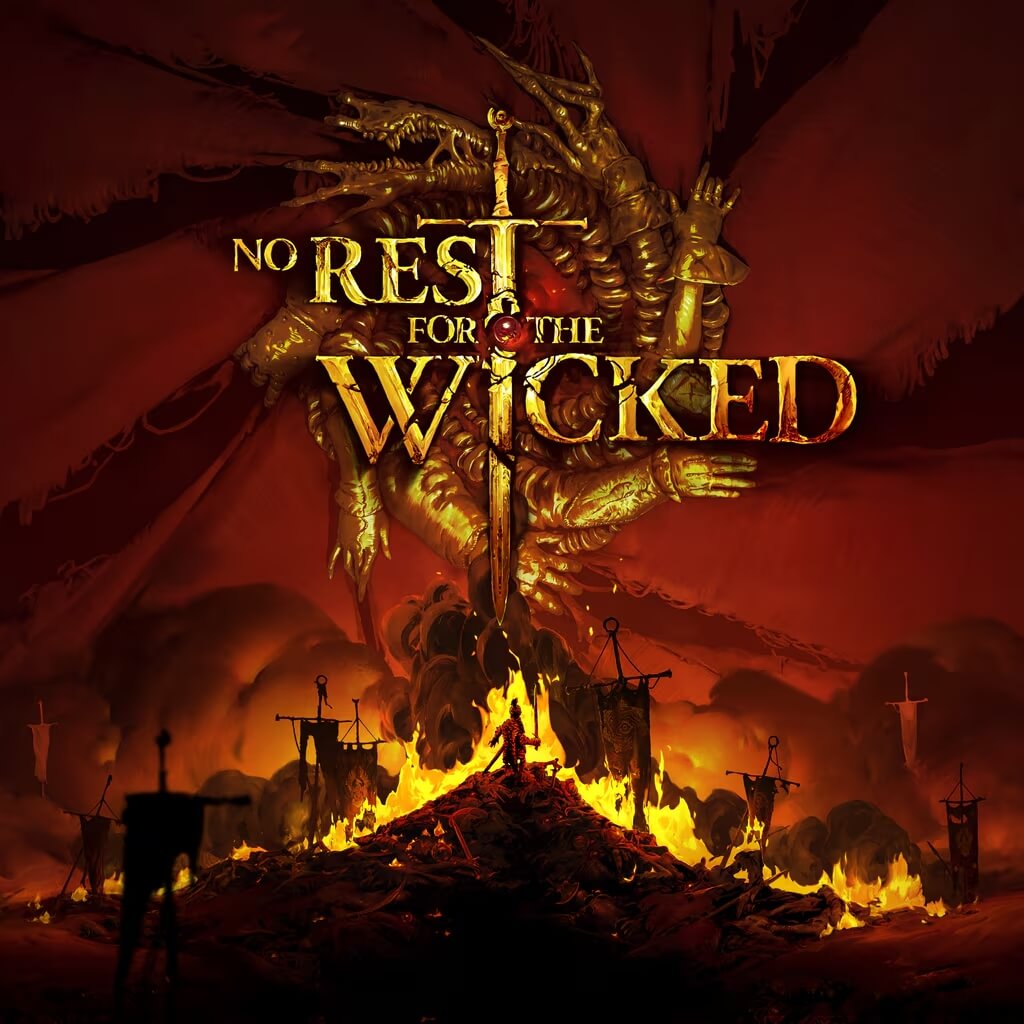 Early Access Review - No Rest for the Wicked deserves your attention [...]
[ Source: The AU Review ]
 Take-Two Interactive layoffs hit Seattle area - 70 workers affected [...]
[ Source: GeekWire ]
 Star Wars is coming to LEGO Fortnite [...]
[ Source: Radio Times ]
TL;DR Gaming News Today
Rockstar Games - Treat speed limits like suggestions in the Överflöd Entity MT supercar, now free to claim for GTA+
Members from The Vinewood Car Club. GTA+ Members can also now download and play the classic detective thriller L.A. Noire!
[ Source: GameTikker ]
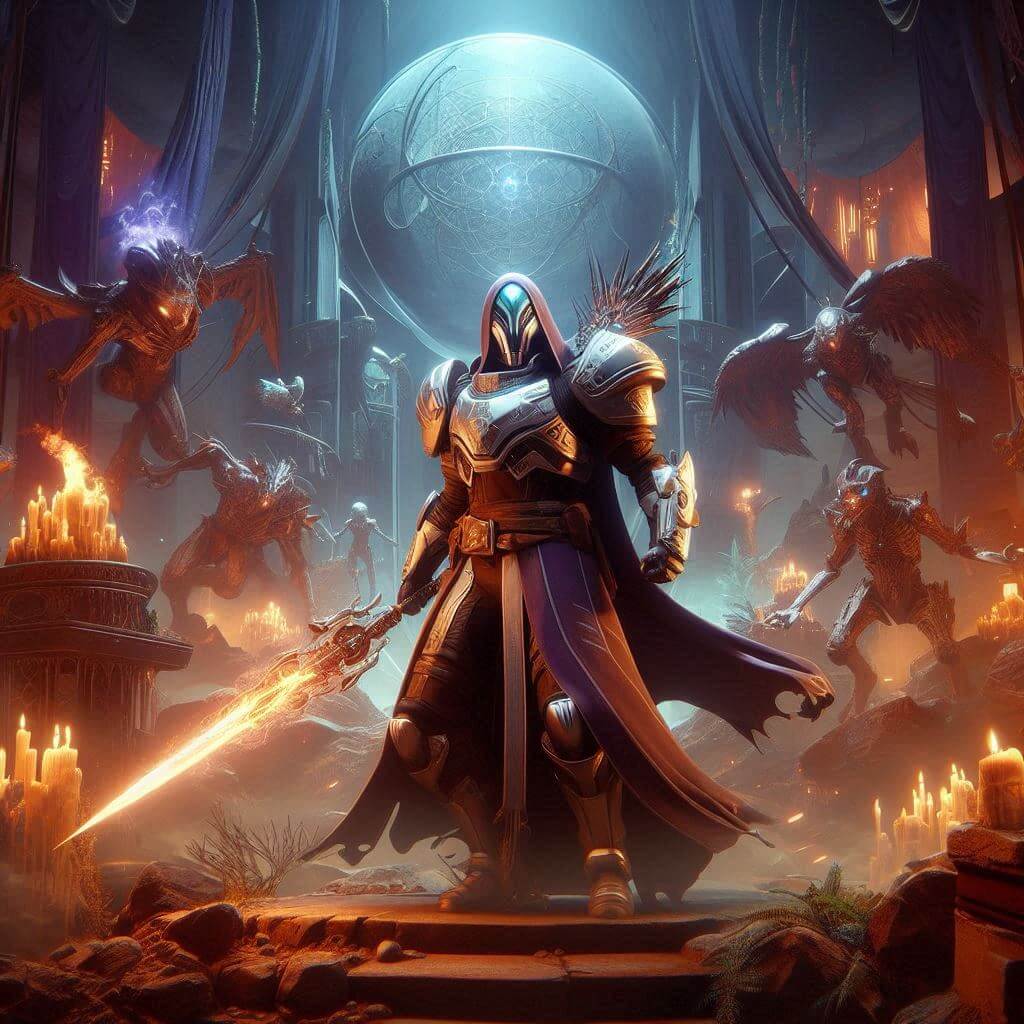 Destiny 2 The Final Shape new revamp helps Guardians accessorize better [...]
[ Source: Dexerto ]
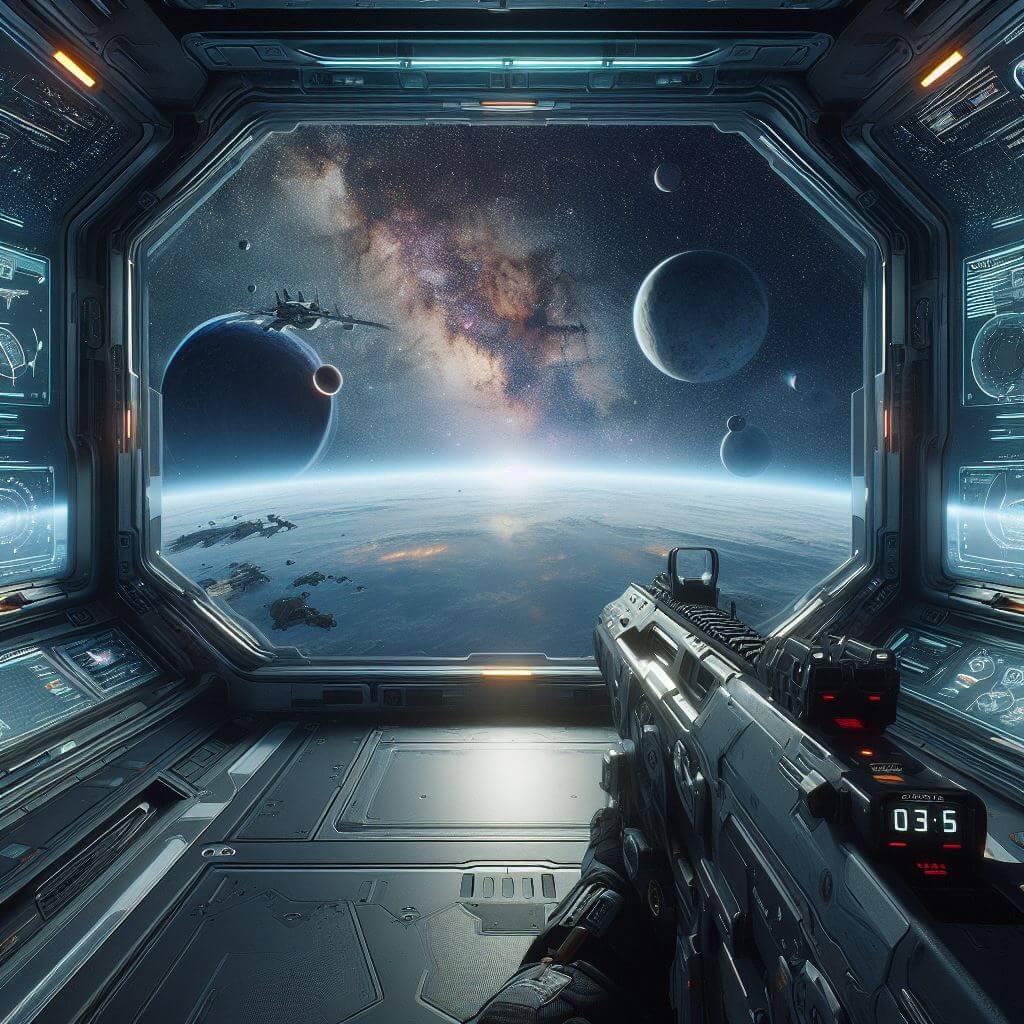 Starfield’s most annoying feature just got nerfed [...]
[ Source: Polygon ]
 Triumph celebrates Age of Wonders 4 anniversary with free dinosaurs [...]
[ Source: Video Games SI ]
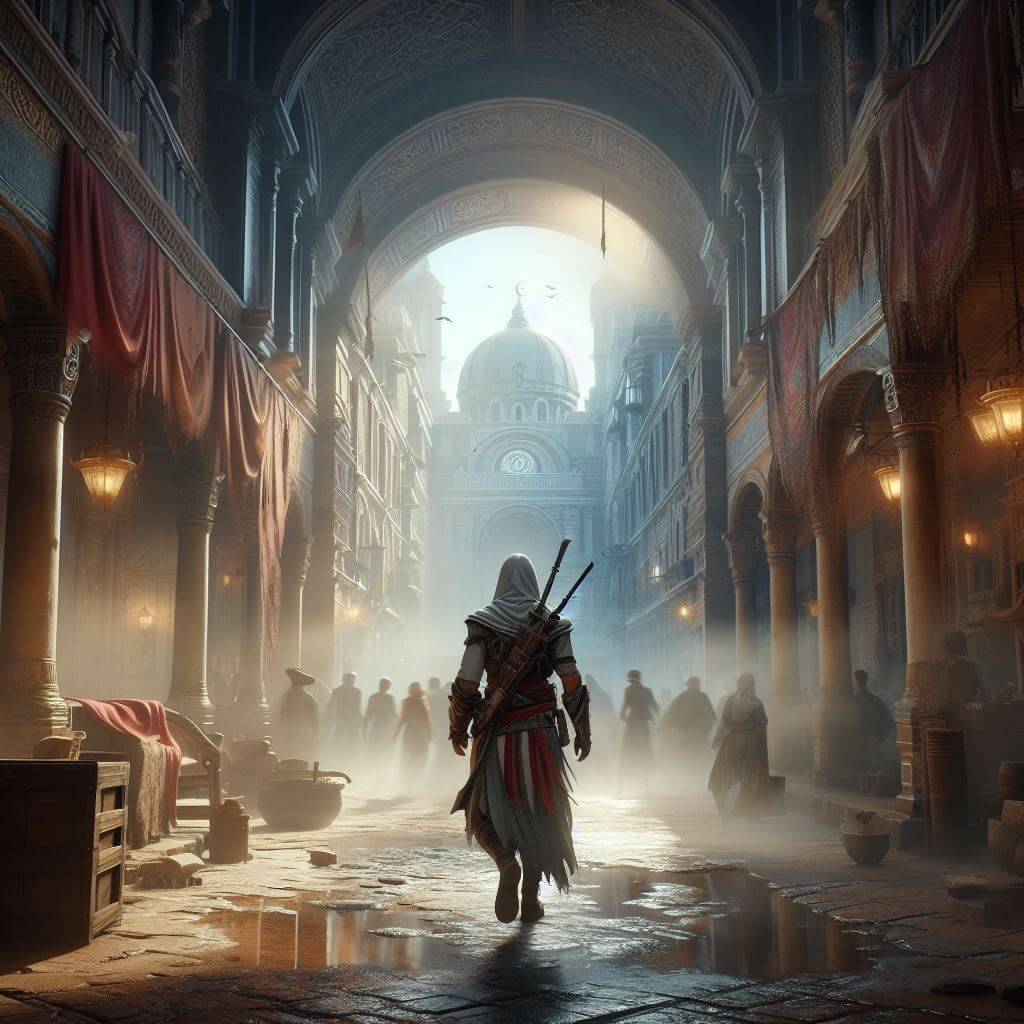 Assassin’s Creed Mirage Coming to iOS App Store on June 6 [...]
[ Source: Ubisoft ]
Iconic Makers Of Retro Gaming Greats Take-Two Interactive Announce Studio Closures [...][ Source: Retro Dodo ]
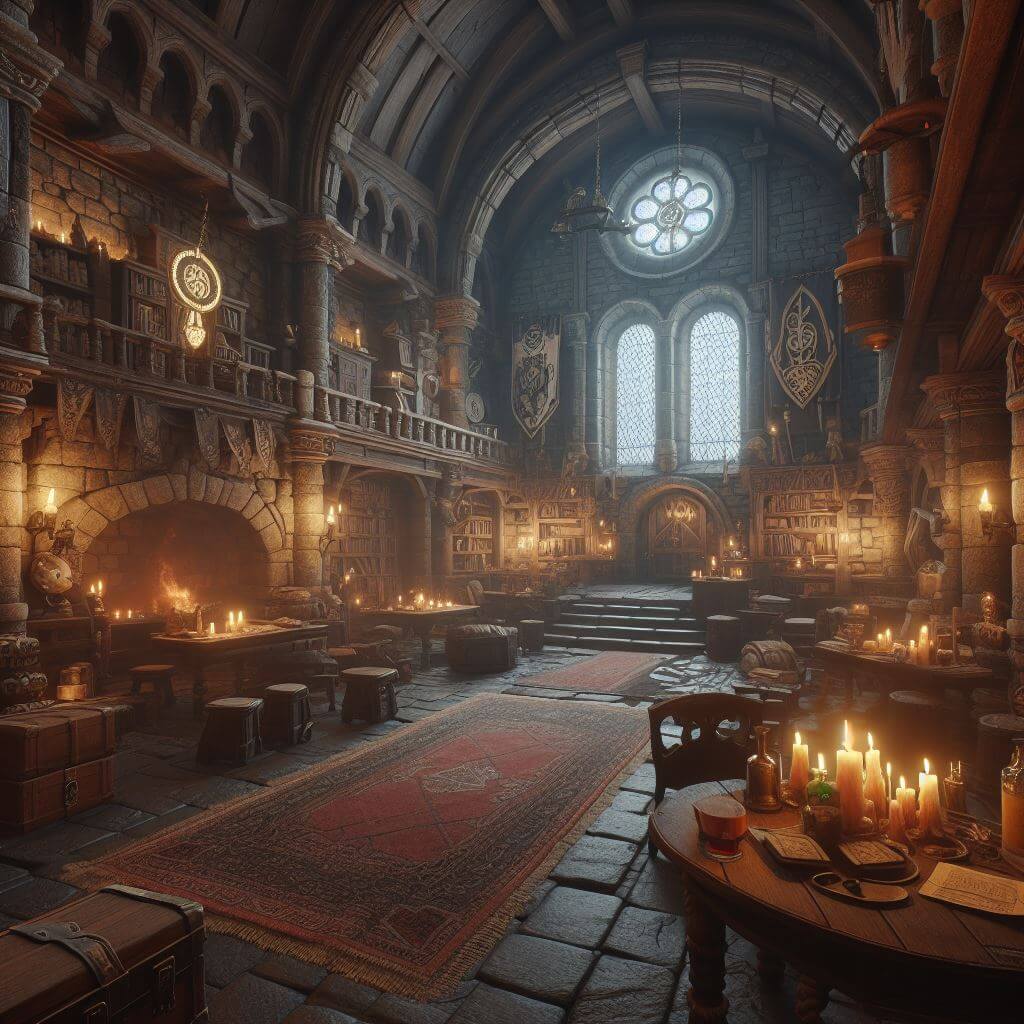 Dungeon Inn - Demo Update: Added Difficulty, Improving UIs and Visuals [...]
[ Source: Indie DB ]
TL;DR Gaming News Today
Ubisoft - The fast arena shooter you've been waiting for is almost here! XDefiant
drops on 21st May on Playstation 5, Xbox Series X|S and Ubisoft Connect PC.
[ Source: GameTikker ]
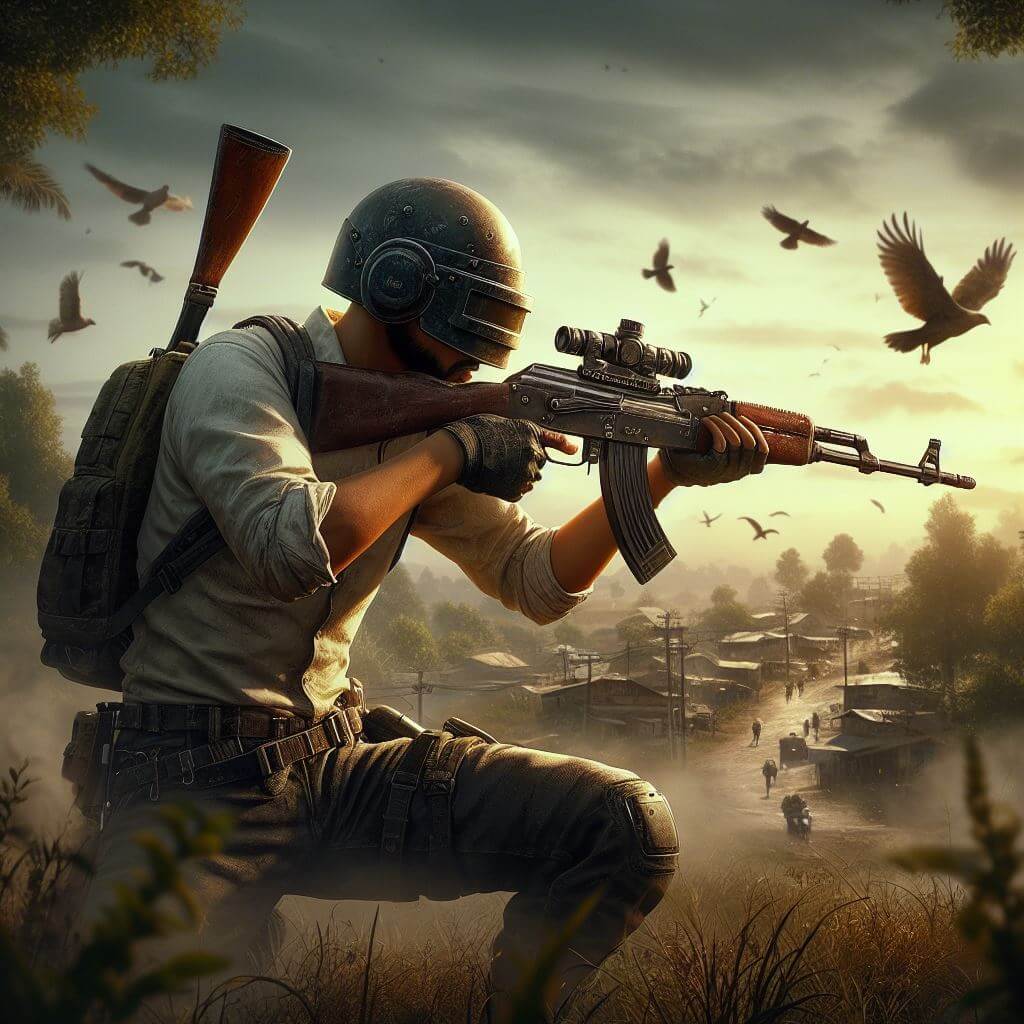 PUBG: BATTLEGROUNDS gets nostalgic with new Erangel Classic map on 14 May [...]
[ Source: Krafton ]
No Rest for the Wicked Steam Deck Gameplay & Performance [...][ Source: Games in Hand ]
 Ice Your Enemies with Helldivers 2's Latest Premium Warbond, Polar Patriots [...]
[ Source: Push Square ]
 Deliver Us Mars Developer Keoken Interactive Lays Off Nearly Entire Staff [...]
[ Source: Game Informer ]
 Helldivers 2 Glitch Causes A Hilariously Brutal Death [...]
[ Source: GamesCreed ]
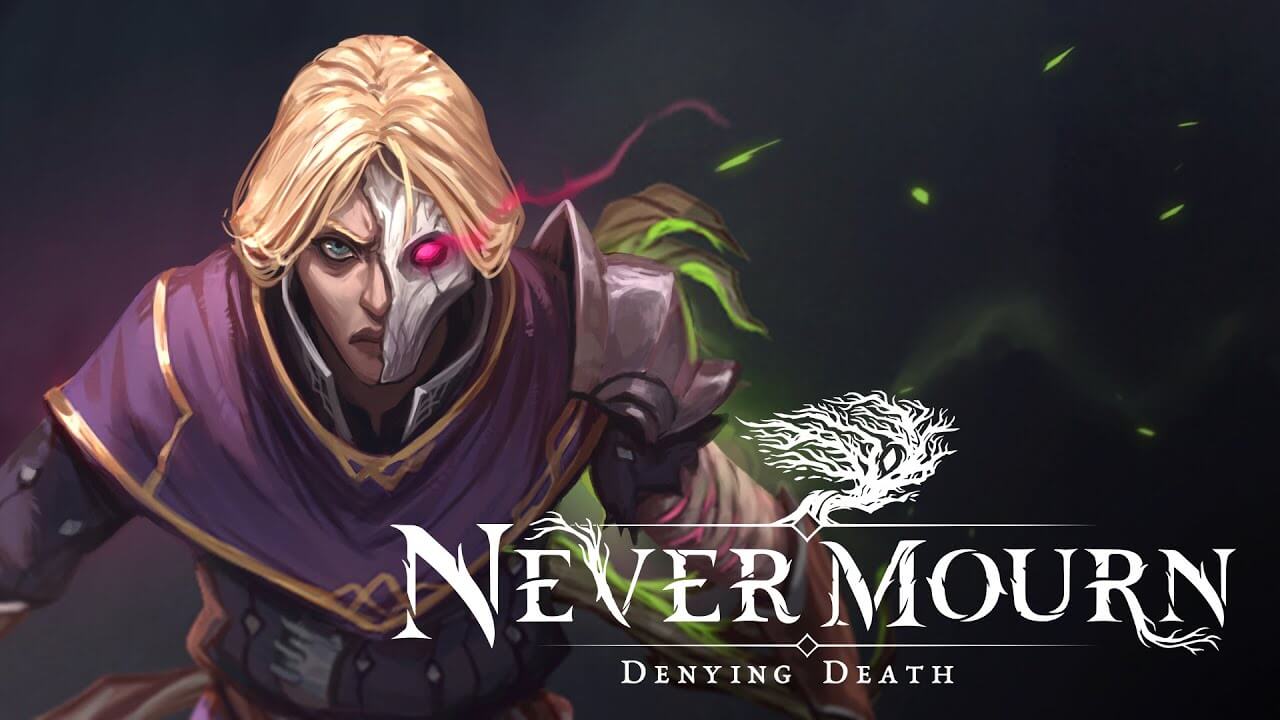 Never Mourn Will Arrive on Steam Early Access in May [...]
[ Source: CoGconnected ]
TL;DR Gaming News Today
PlayStation - Mysterious platformer Animal Well hatches into the PlayStation Plus Game Catalogue on May 9!
[ Source: GameTikker ]
 NFL Rivals Celebrates First Anniversary by Teasing Huge New Changes for Draft Program [...]
[ Source: PlayToEarn ]
 Star Wars: Hunters Gets Nintendo Switch Release Date [...]
[ Source: CBR ]
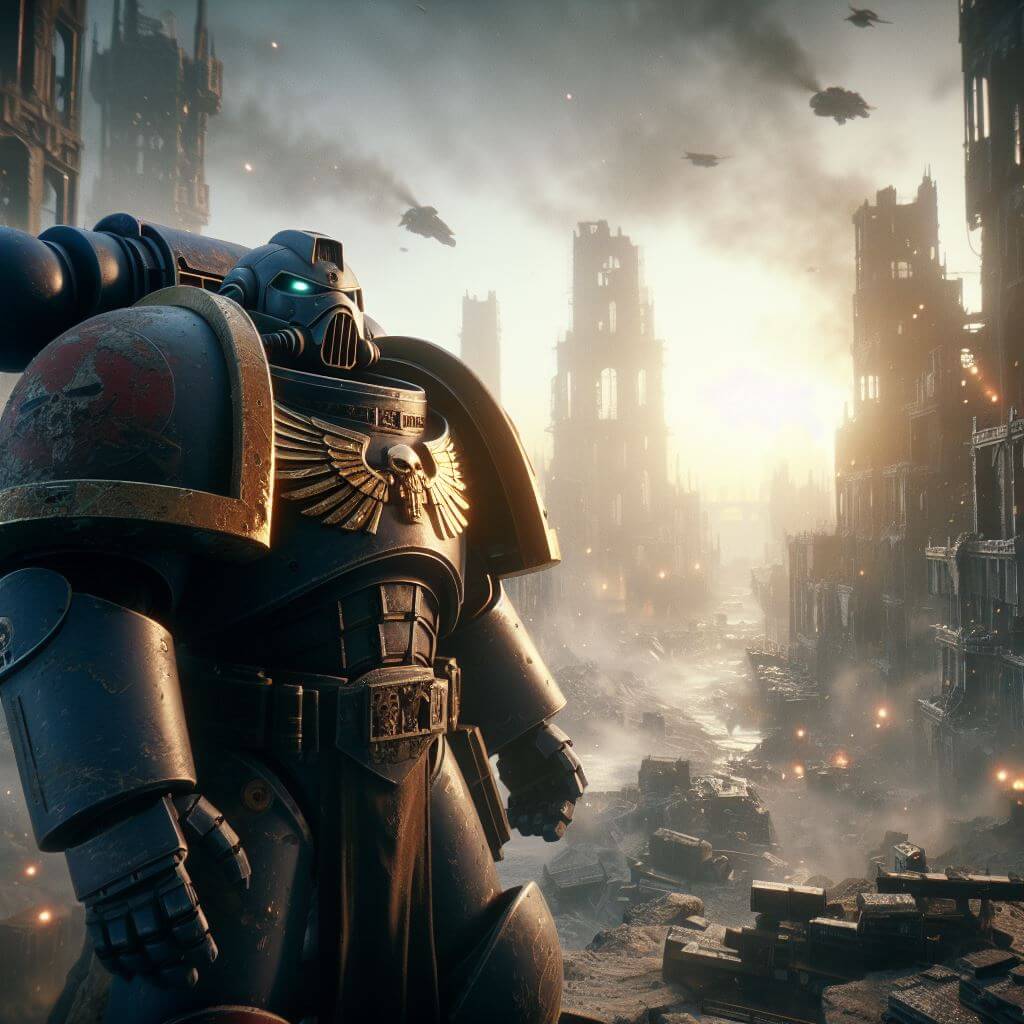 Embrace the Chaos in Thrones of Decay - Out Now for Total War: WARHAMMER III on macO & Linux [...]
[ Source: Feral Interactive ]
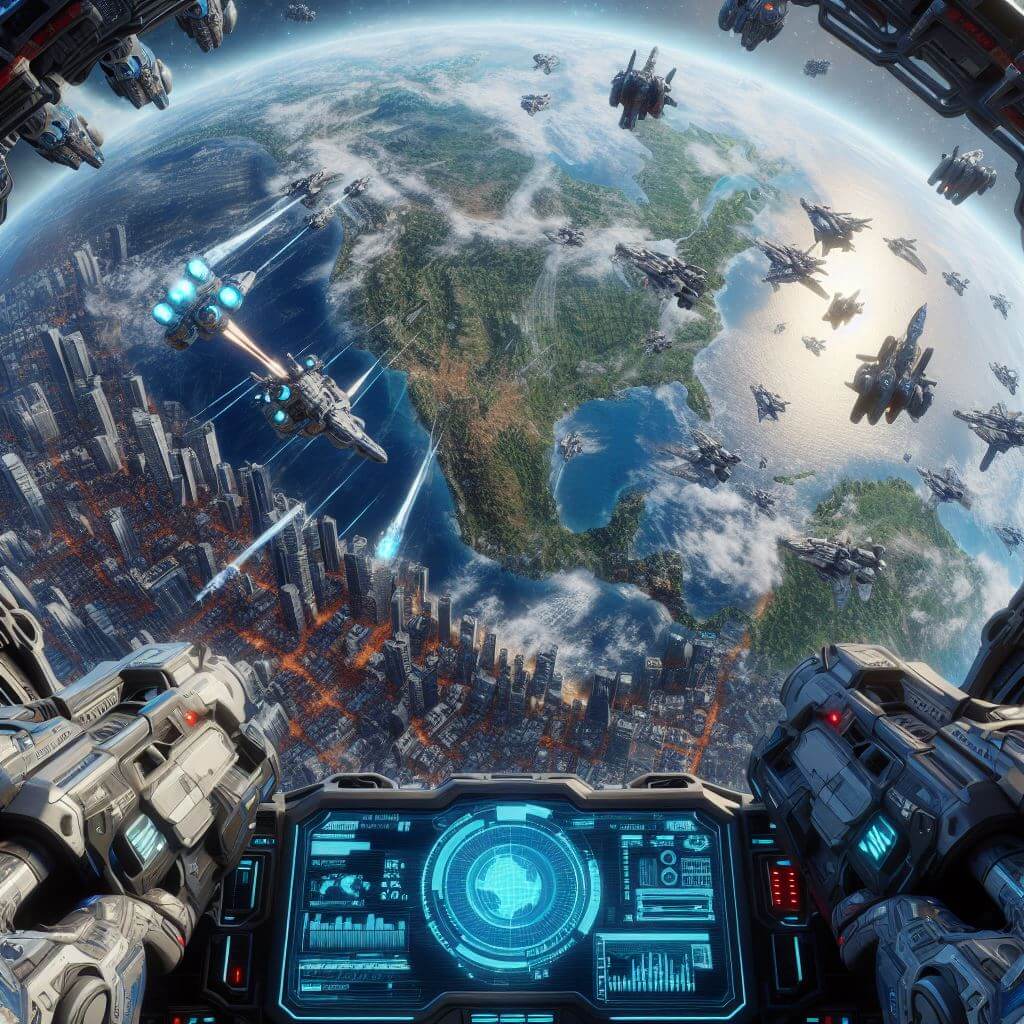 Earth Defense Force 6 launches July 25 in the west [...]
[ Source: Gematsu ]
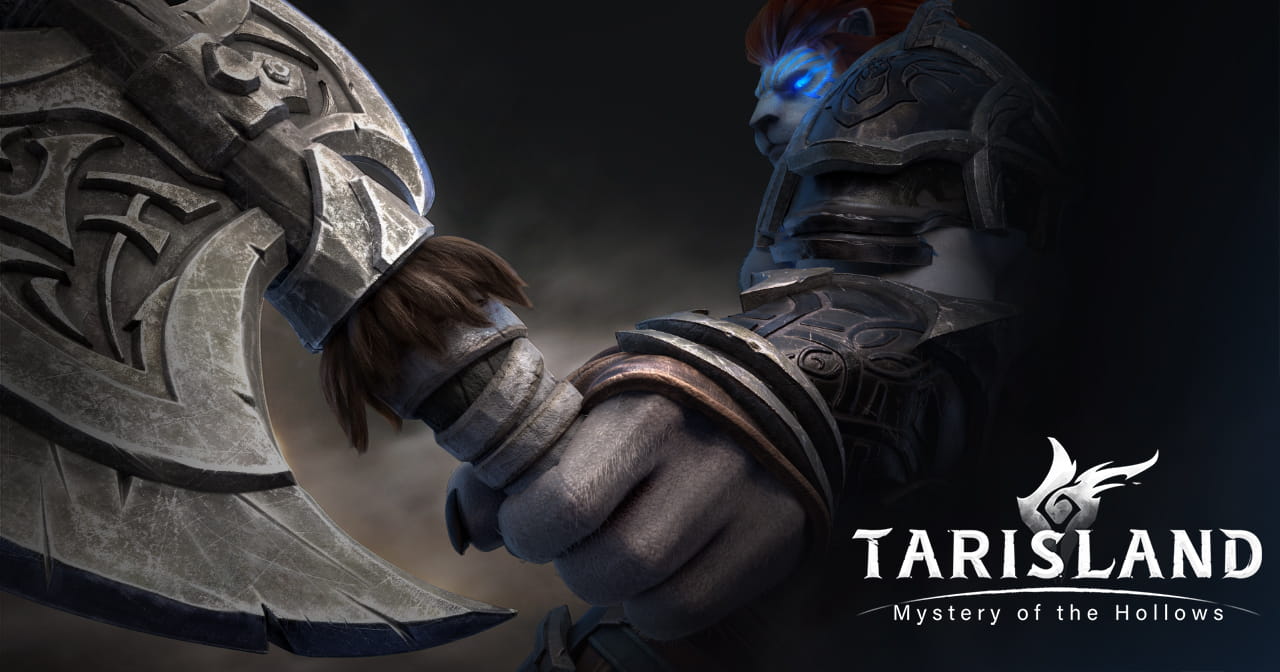 Fantasy MMORPG Tarisland Begins Pre-Registration for PC and Mobile [...]
[ Source: MMOHaven ]
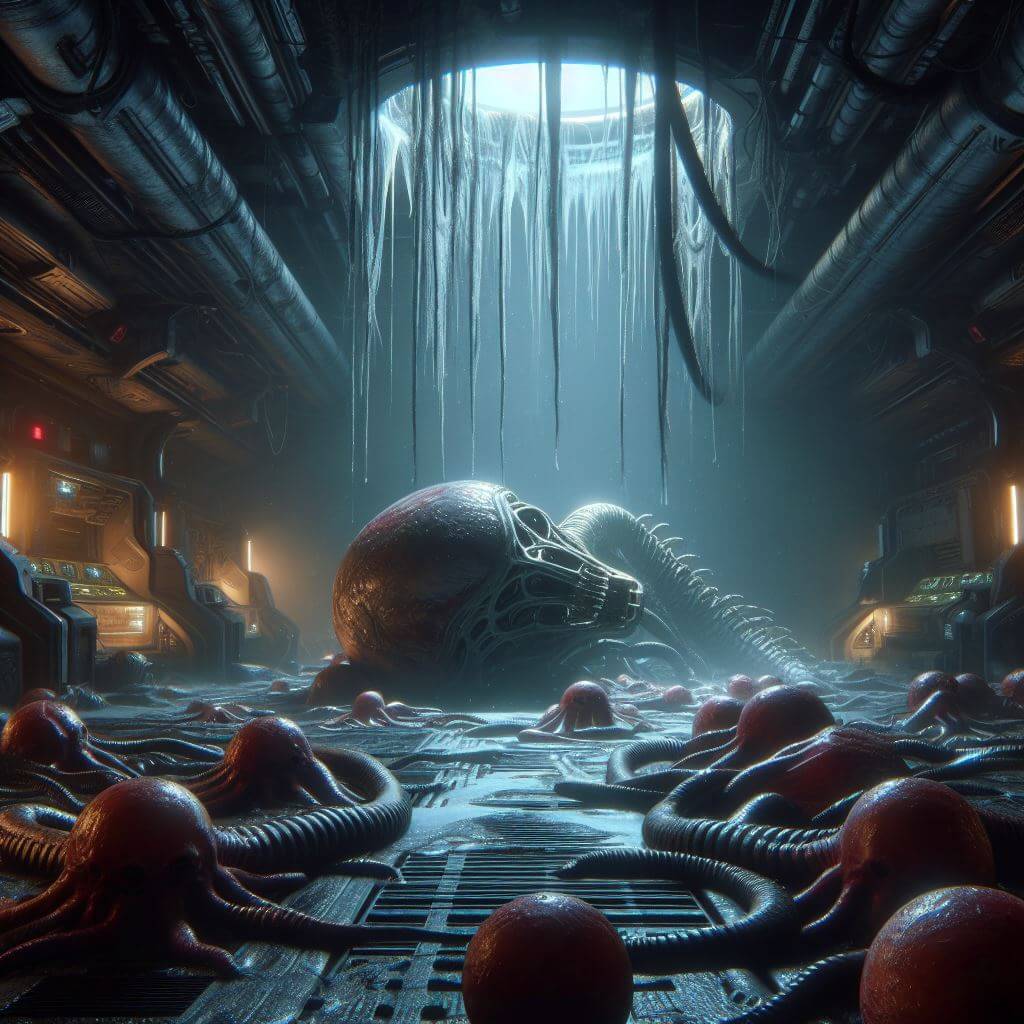 ‘Alien: Rogue Incursion’ Finally Announced From Veteran VR Studio, Set for Late 2024 [...]
[ Source: Road to VR ]
TL;DR Gaming News Today
Fuzz Force: Isle of Swaps - Got, got, NEED! Inspired by swapping monster cards at school, this indie game is a
deckbuilder roguelite where you build your deck by trading for new cards from your opponents! Play the demo on Steam!
[ Source: GameTikker ]
 EVERSPACE 2 Unveils Incursions Update, Migrates to UE5 [...]
[ Source: Hey Poor Player ]
 Gray Zone Warfare Early Access Launch Revealed [...]
[ Source: Lords of Gaming ]
 Xbox Games Showcase and Direct Announced for June 2024 [...]
[ Source: The Outerhaven ]
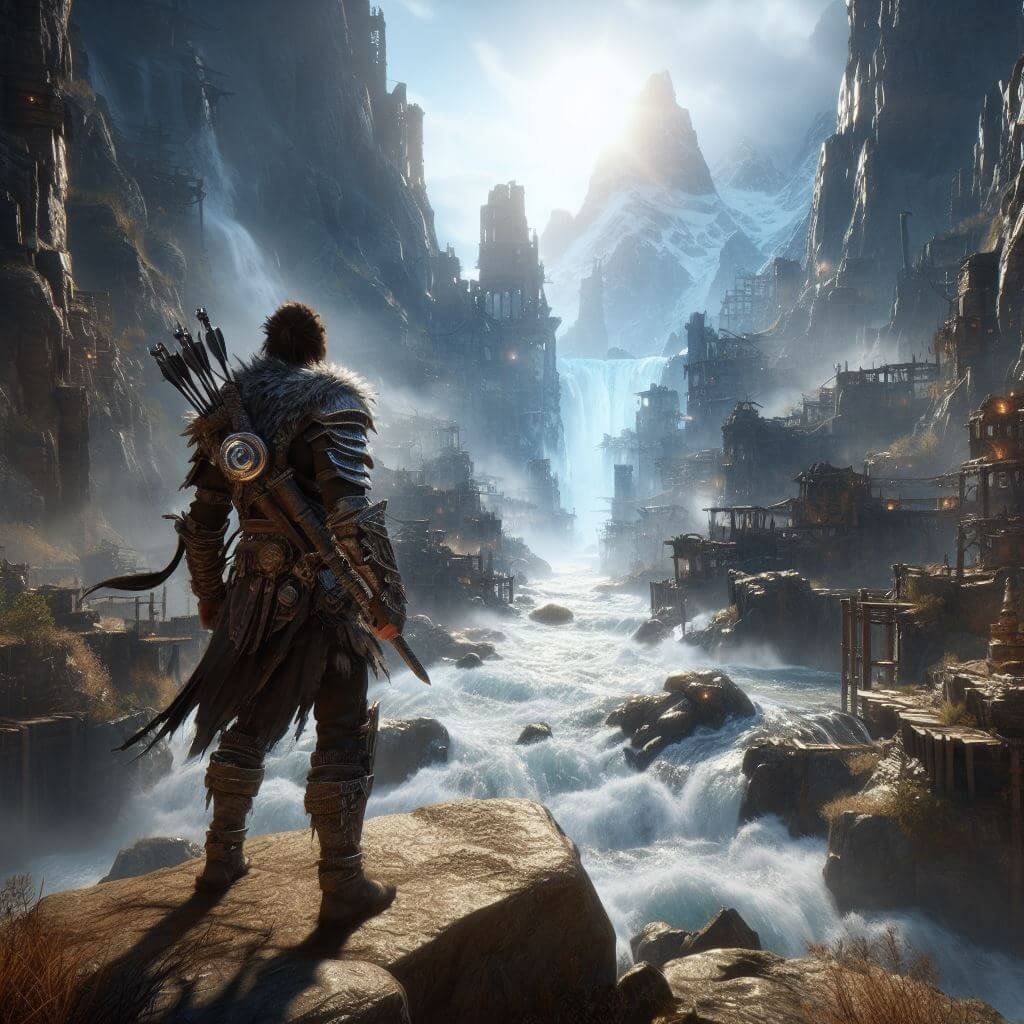 Lost Ark - 2024 Roadmap Part 2 [...]
[ Source: Lost Ark ]
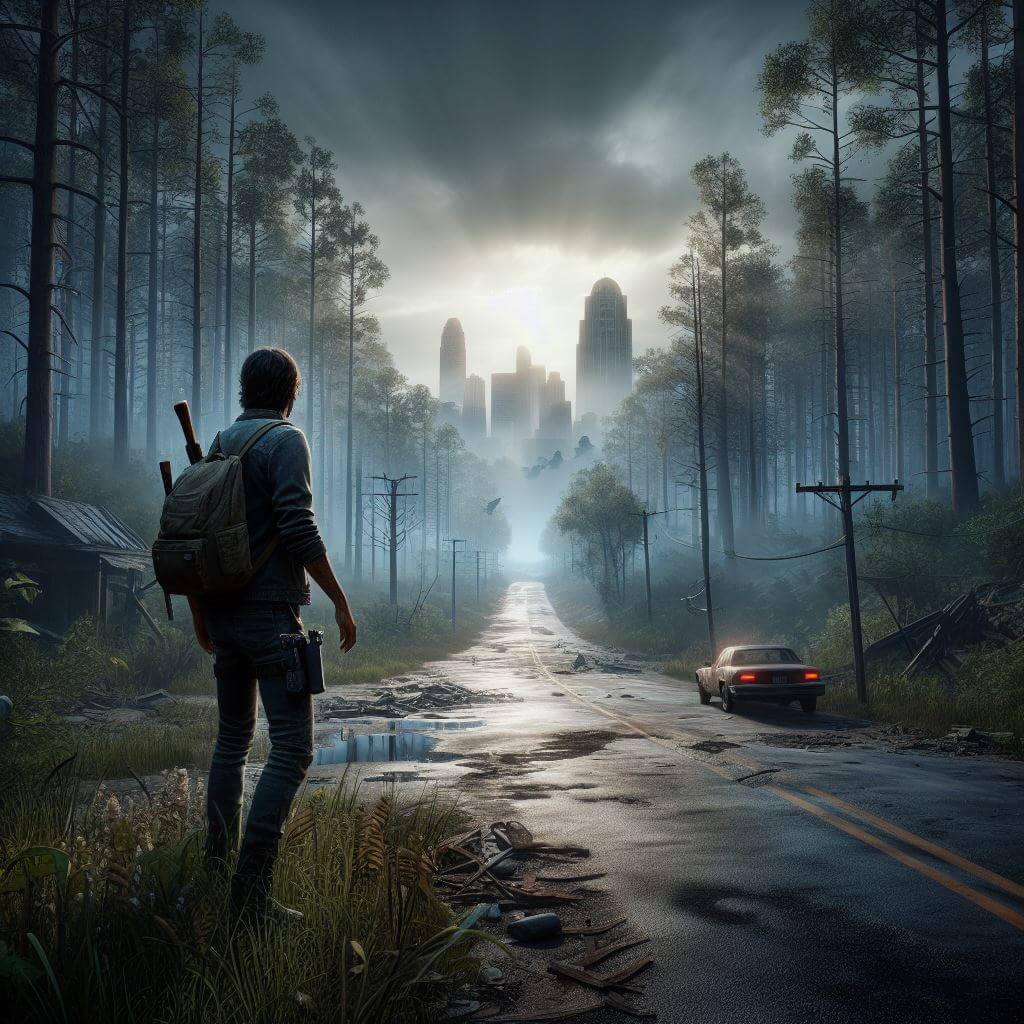 The Walking Dead: Saints & Sinners - Review [...]
[ Source: Duuro Plays ]
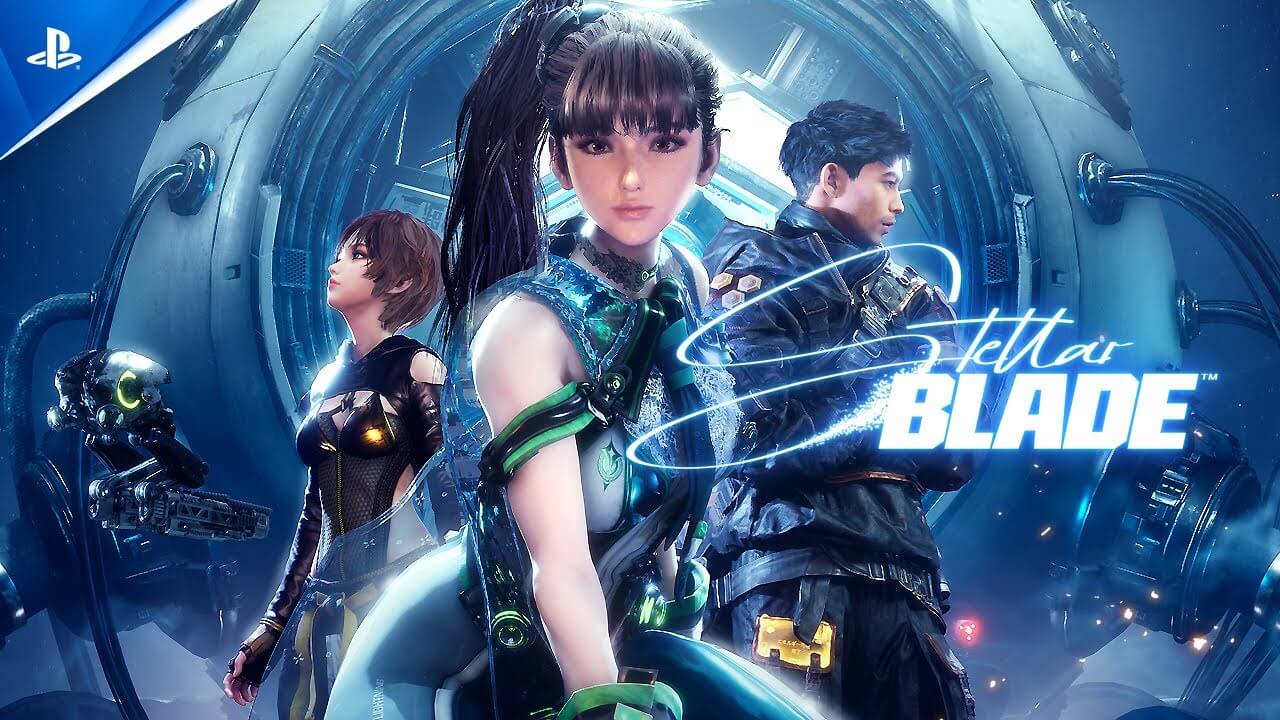 Players outraged at unexpected Stellar Blade outfit censorship [...]
[ Source: Esports GG ]
TL;DR Gaming News Today
bleakmill - Our first game INDUSTRIA, a narrative FPS inspired by HL2
and Bioshock, is still available for FREE in the Epic Games Store.
[ Source: GameTikker ]
 The Most Inventive PS5 Shooter Gets An Unexpected Third-Anniversary Spinoff [...]
[ Source: Inverse ]
 PS5 Firmware Update Adds Community Game Help Feature [...]
[ Source: GamesHorizon ]
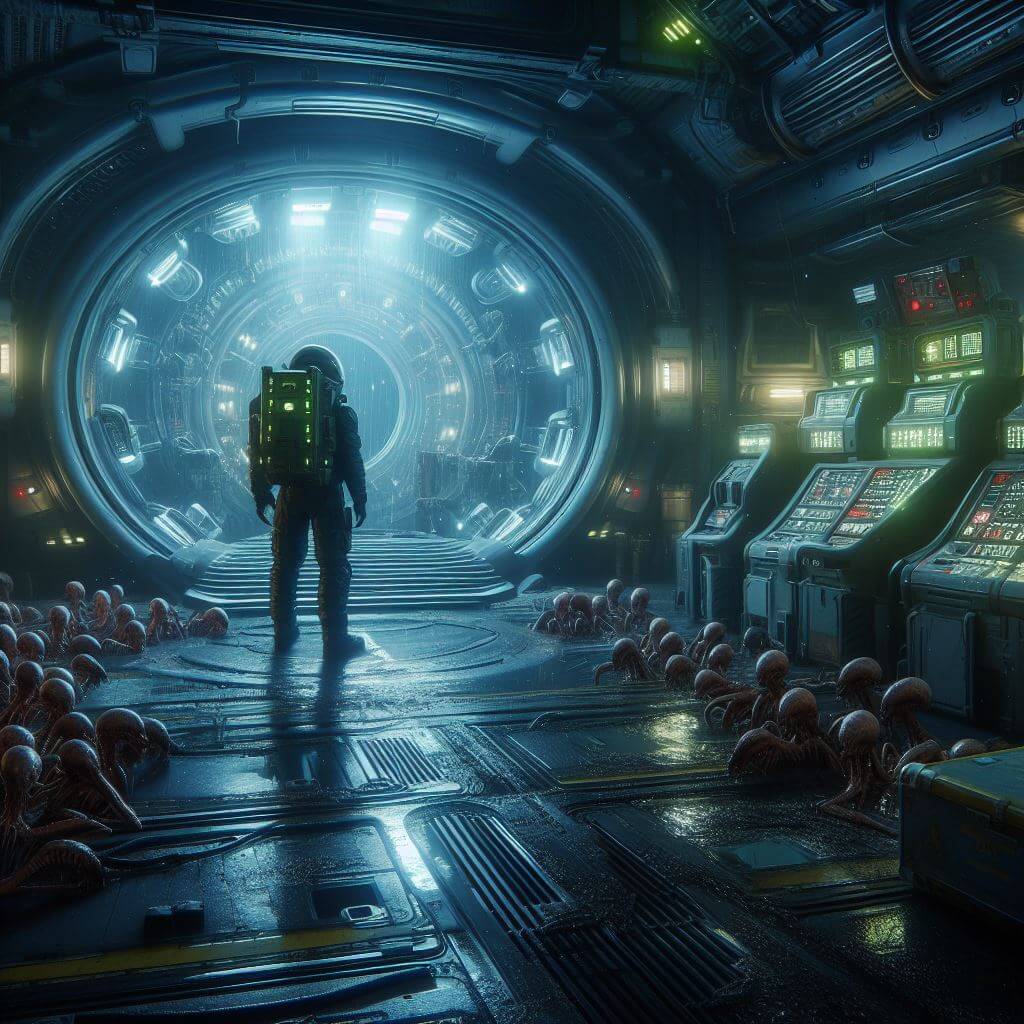 Alien VR just announced for Meta Quest 3 and PSVR2 [...]
[ Source: Toms Guide ]
 Lidia Sobieski is the second DLC character for TEKKEN 8, more updates revealed [...]
[ Source: Bandai Namco ]
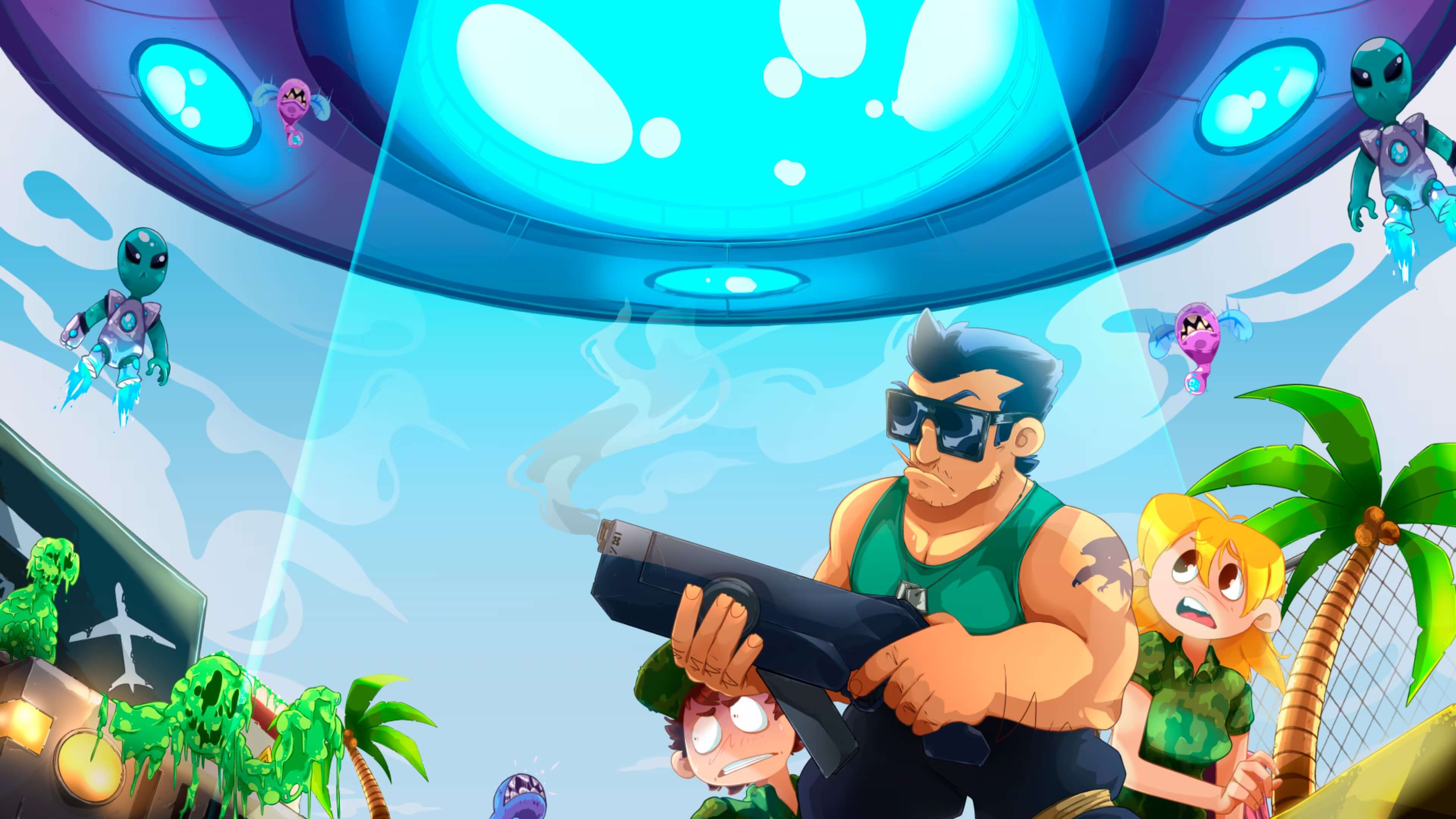 Zombies Aliens & Guns - Review [...]
[ Source: Xbox Oldies ]
 Star Wars Jedi: Survivor Lands on Game Pass via EA Play [...]
[ Source: Culture of Gaming ]
TL;DR Gaming News Today
Fall Guys - FALL FOREVER UPDATE 7TH MAY! New Explore mode. New Piggybacking mechanic. New Social Wheels. QOL changes!
[ Source: GameTikker ]
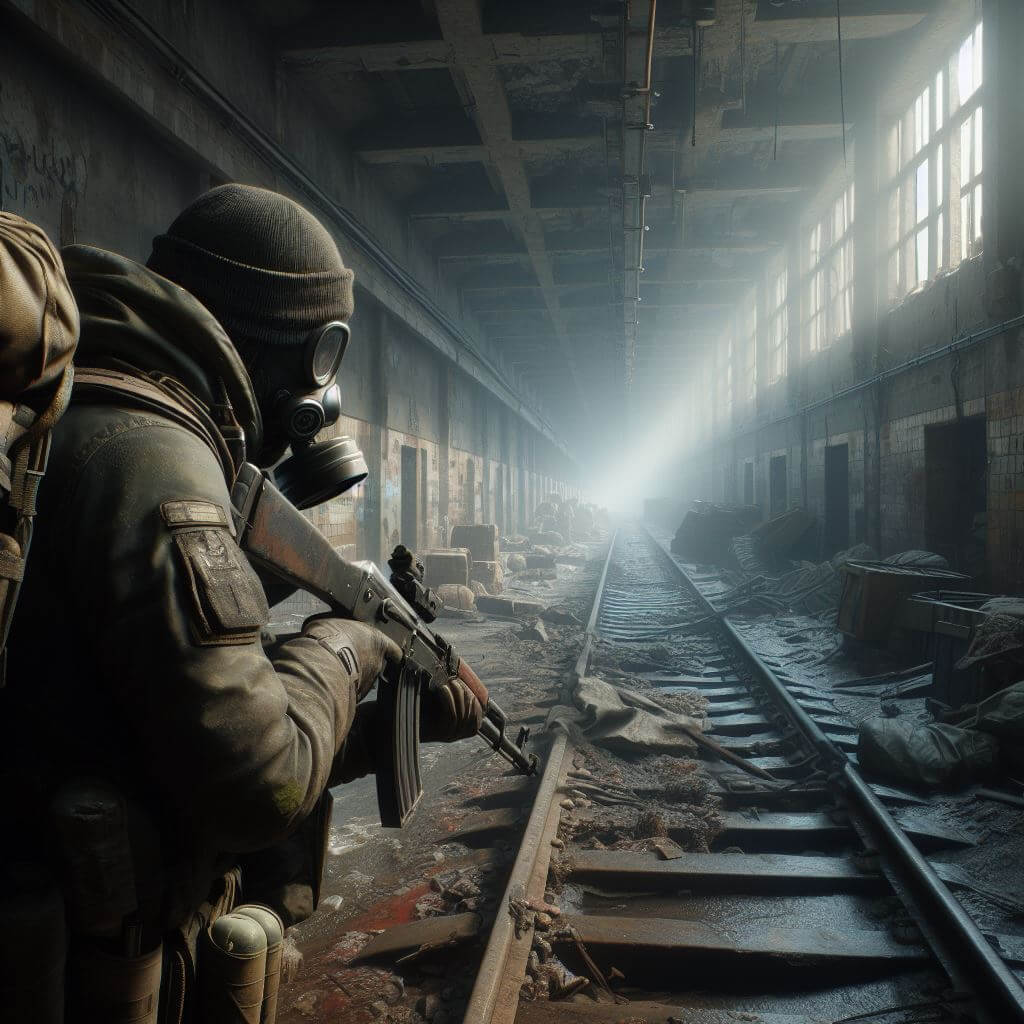 Escape From Tarkov Backpeddles On Paid PvE Mode After Player Outrage [...]
[ Source: HotHardware ]
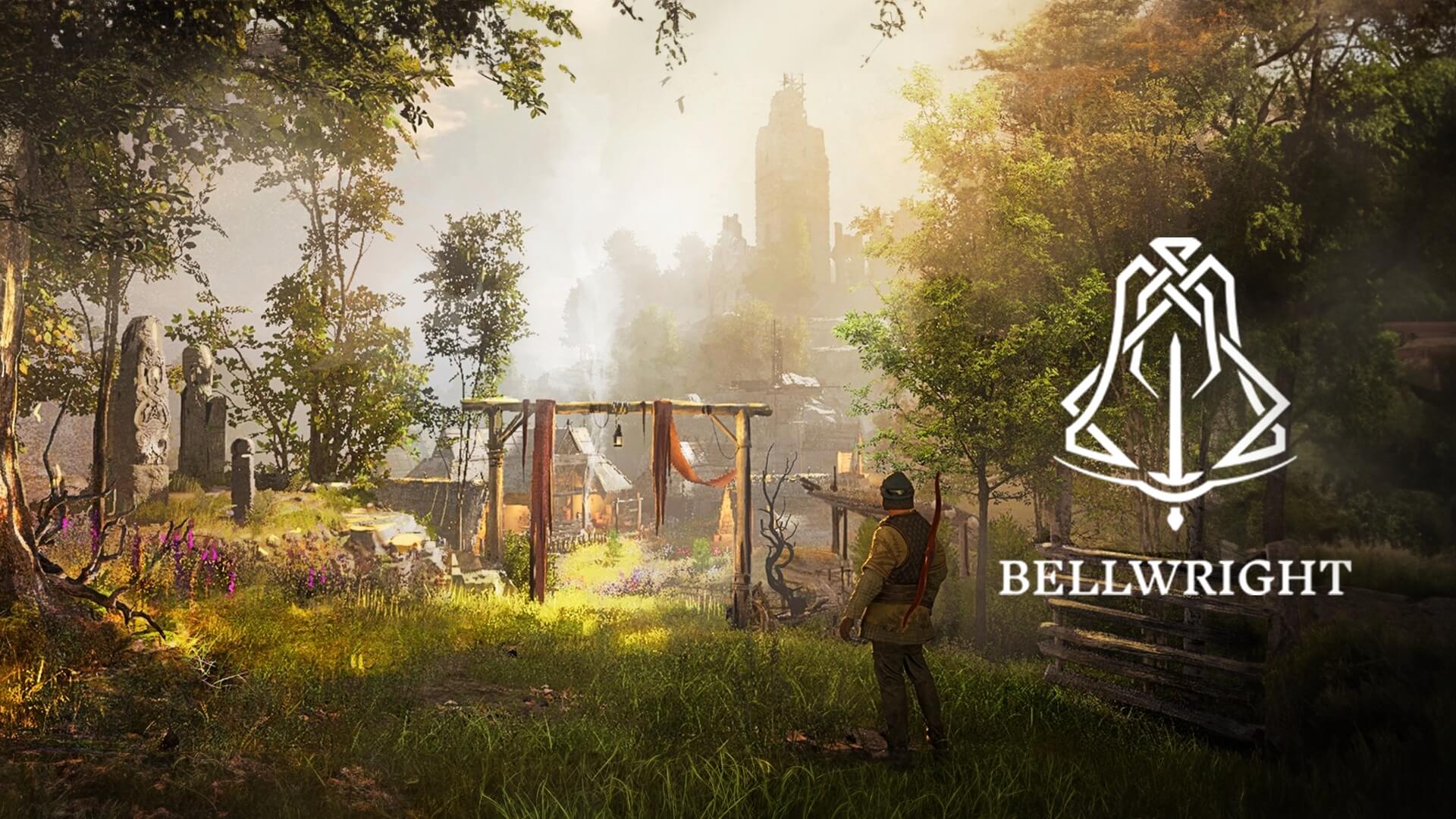 Donkey Crew’s New Survival Crafting Game ‘Bellwright’ Launches Into Steam Early Access [...]
[ Source: MMOs ]
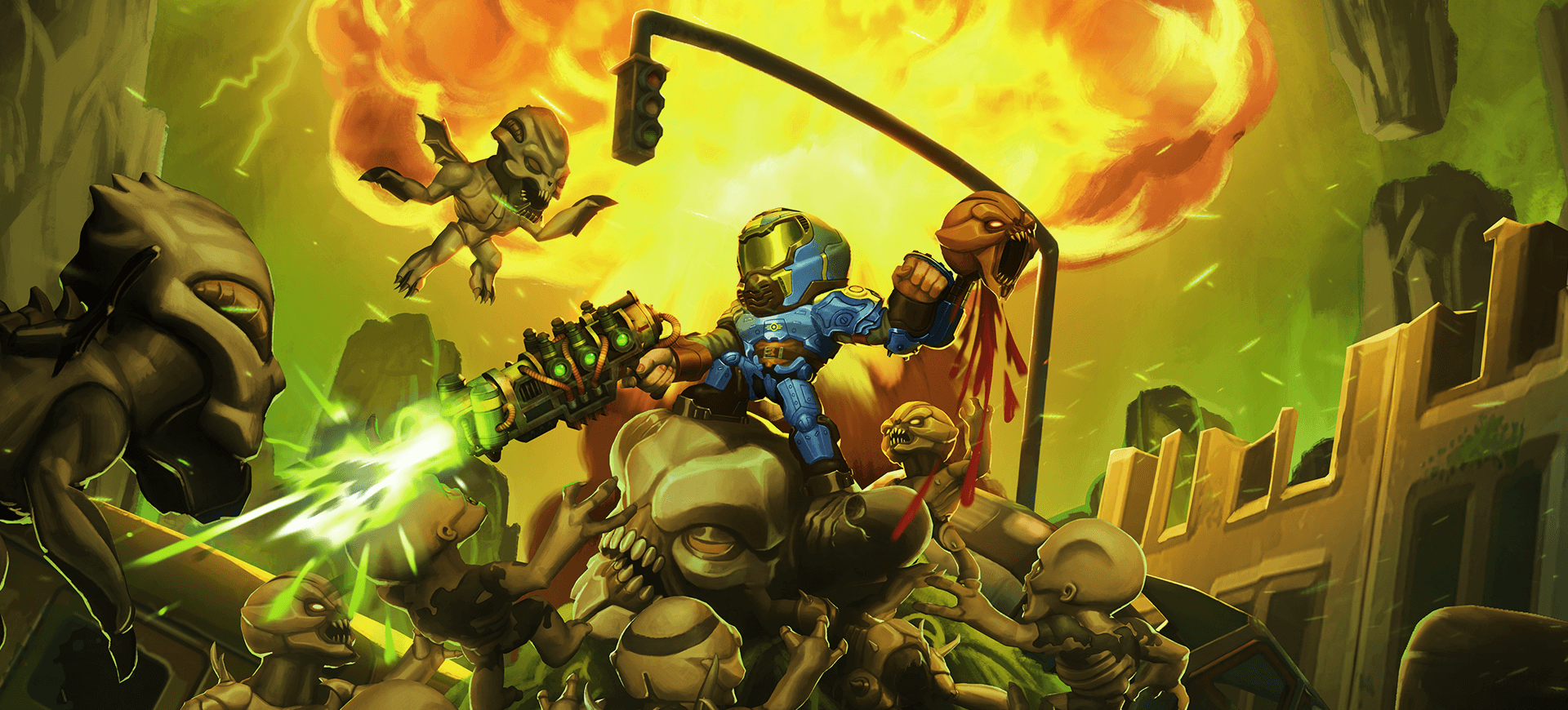 Mighty DOOM and Fallout Crossover in Season 14 [...]
[ Source: Bethesda ]
 Rise of the Ronin - A New and Improved Looting System [...]
[ Source: WhatIfGaming ]
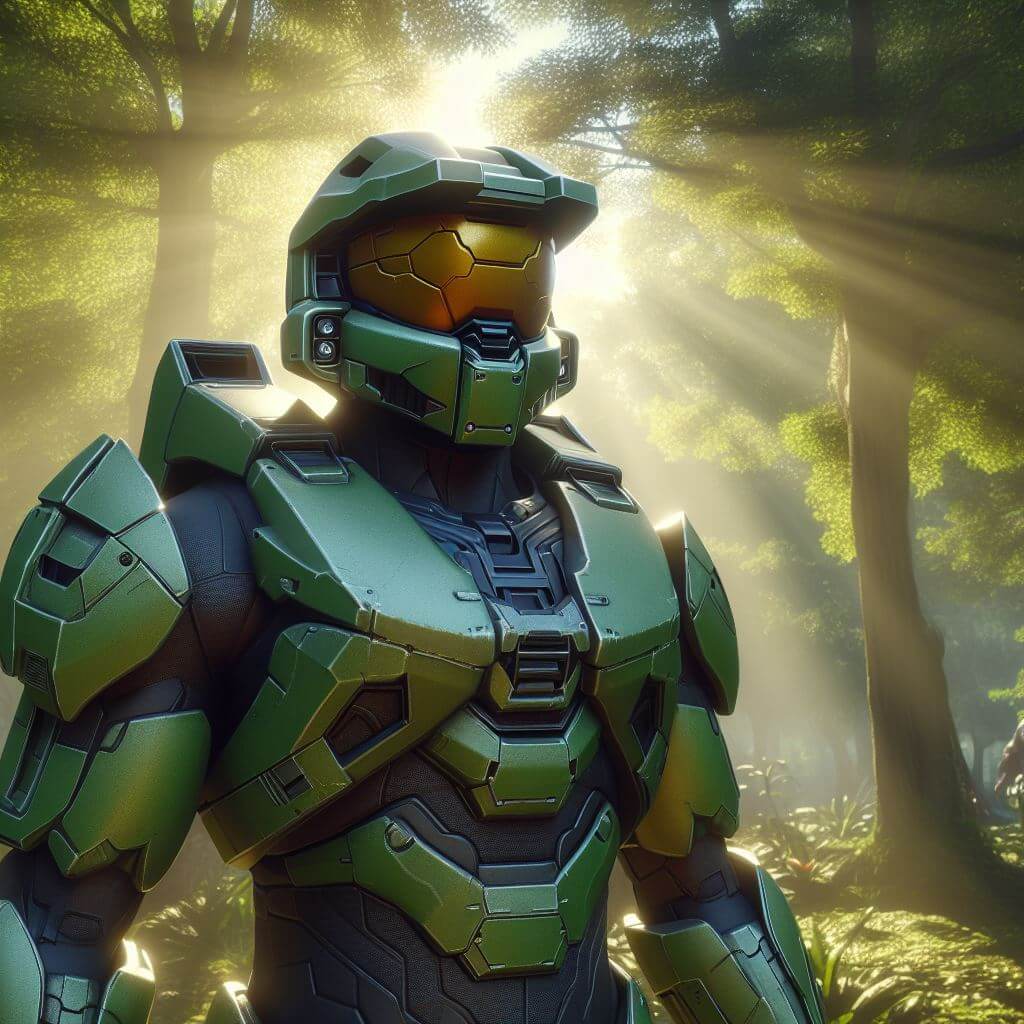 Forge is getting some new additions with the arrival of Halo Infinite’s next content update [...]
[ Source: Halo Waypoint ]
 Teenage Mutant Ninja Turtles Arcade: Wrath of the Mutants - Review [...]
[ Source: Capsule Computers ]
TL;DR Gaming News Today
REKA - The REKA closed playtest begins tomorrow, and it's your last chance to register your interest
to take part! If you'd like the chance to play our game and leave us feedback, head to our Steam page!
[ Source: GameTikker ]
 2K Dev Team Teases NBA 2K25 [...]
[ Source: NBA 2KW ]
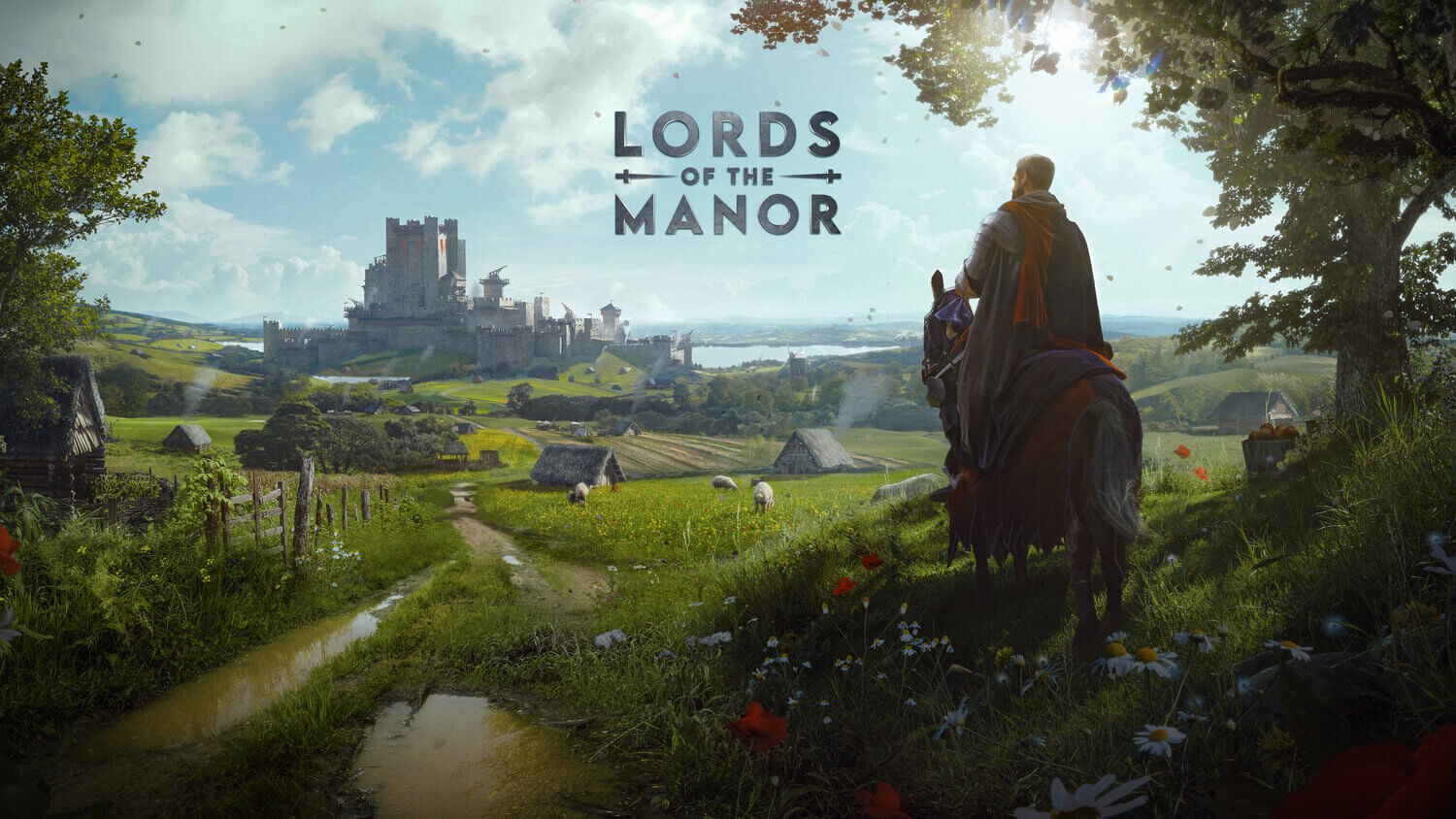 Manor Lords sold 1m copies on first day on sale [...]
[ Source: PC Games Insider ]
 Nintendo Switch 2 could have magnetic Joy-Con and a larger 1080p screen [...]
[ Source: The Shortcut ]
 Assetto Corsa Competizione - Nürburgring 24hr Pack DLC Coming To Consoles On May 2nd [...]
[ Source: Bsimracing ]
 Steam Updates Refund Policy to Close an Early Access Loophole [...]
[ Source: GameRavolution ]
 Epic Games Store: New Free Game of the Week Revealed [...]
[ Source: EarlyGame ]
TL;DR Gaming News Today
Stray Fawn Studio - Build your deck, fight enemies by grabbing weapons and items from a claw machine
and find special artifacts in this Roguelike Claw Machine Deckbuilder. Wishlist Dungeon Clawler on Steam!
[ Source: GameTikker ]
 Lollipop Chainsaw remaster to get full reveal soon [...]
[ Source: TrueAchievements ]
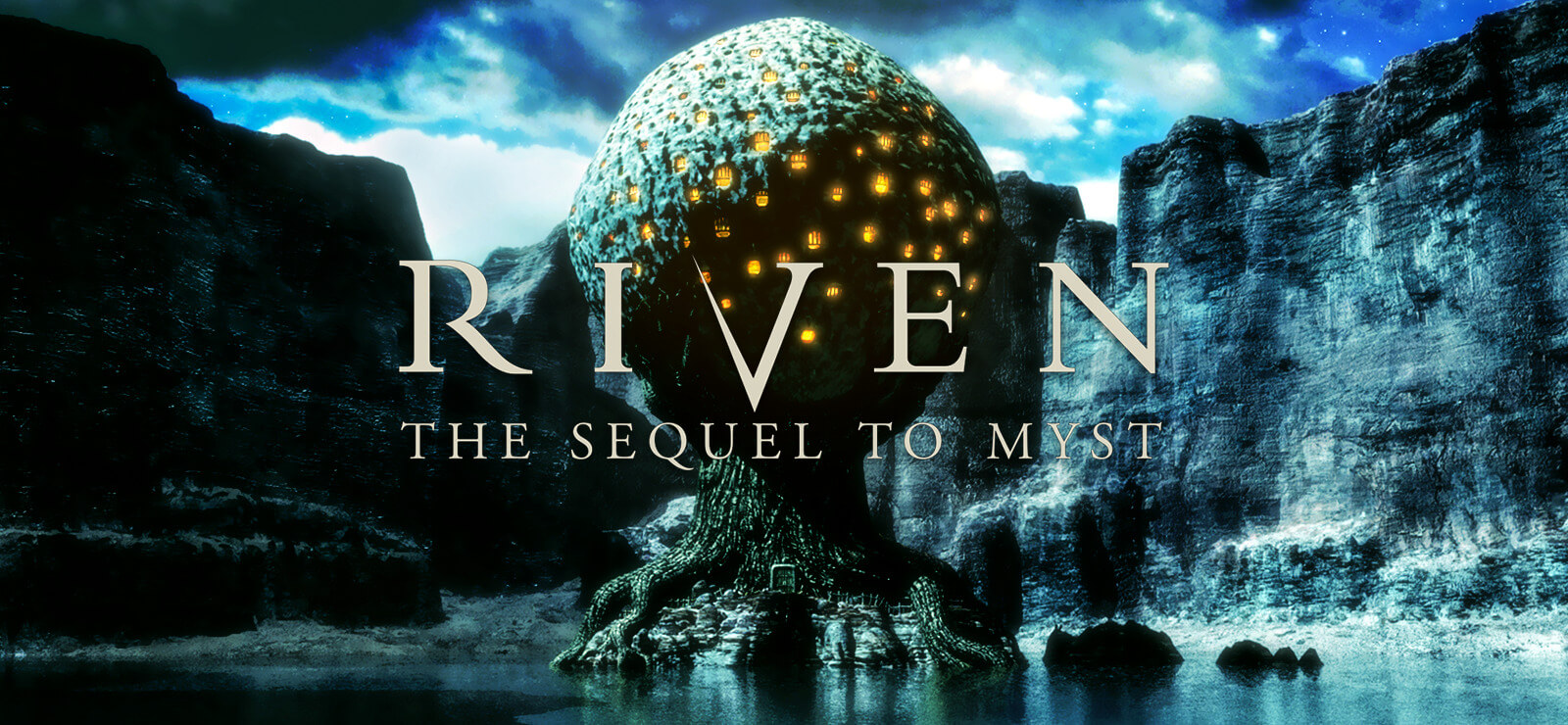 Legendary Puzzler Myst Sequel ‘Riven’ Is Getting a Remake [...]
[ Source: Gaming Respawn ]
 Hacking the Narrative "Cyber Manhunt 2: New World" Arrives on Steam Early Access [...]
[ Source: G-Lyfe ]
 Garry’s Mod is taking down decades of Nintendo-related add-ons [...]
[ Source: The Verge ]
Stellar Blade users ask PlayStation for refunds for misleading advertising [...][ Source: Aroged ]
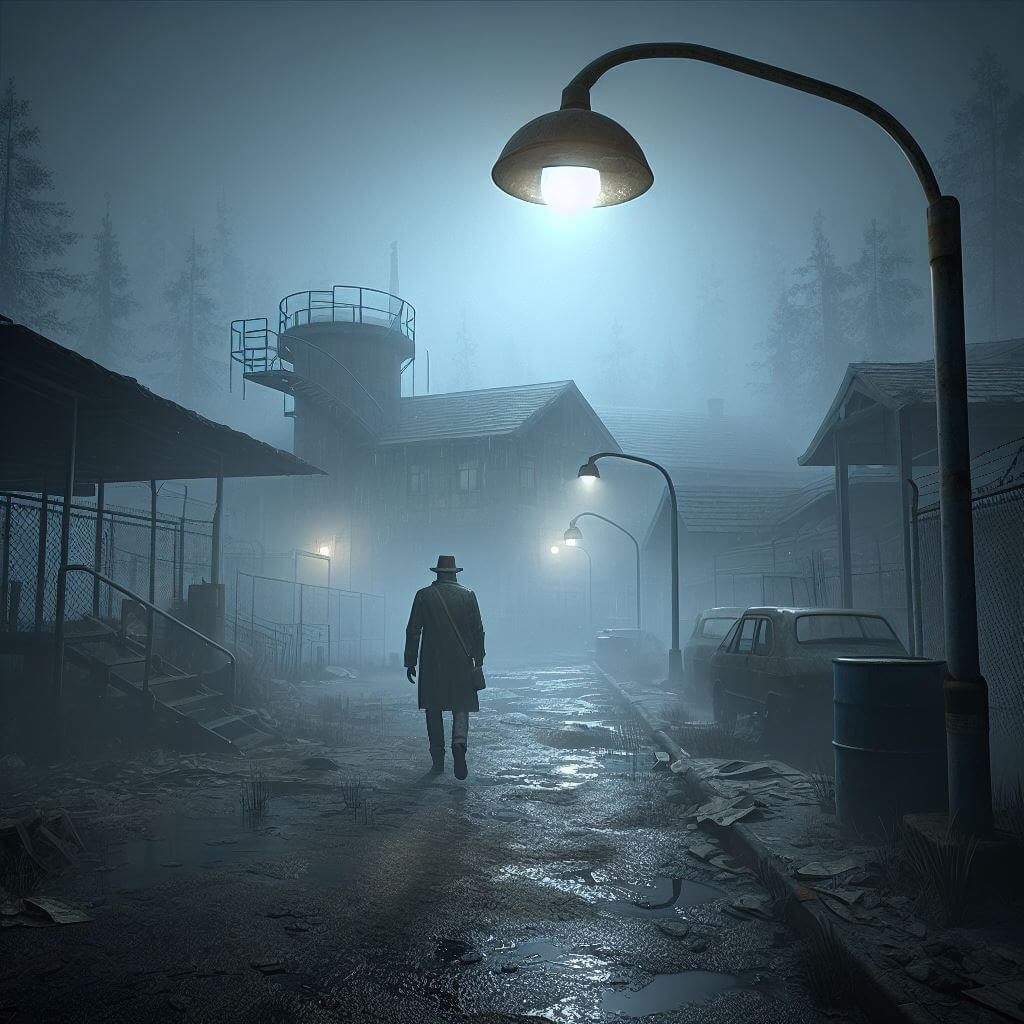 Silent Hill 2 Will Get Release Date Soon [...]
[ Source: Try Hard Guides ]
TL;DR Gaming News Today
Enter The Chronosphere - Experience the ultimate psychedelic roguelike that blurs
the line between real-time action and turn-based tactics. Wishlist now on Steam!
[ Source: GameTikker ]
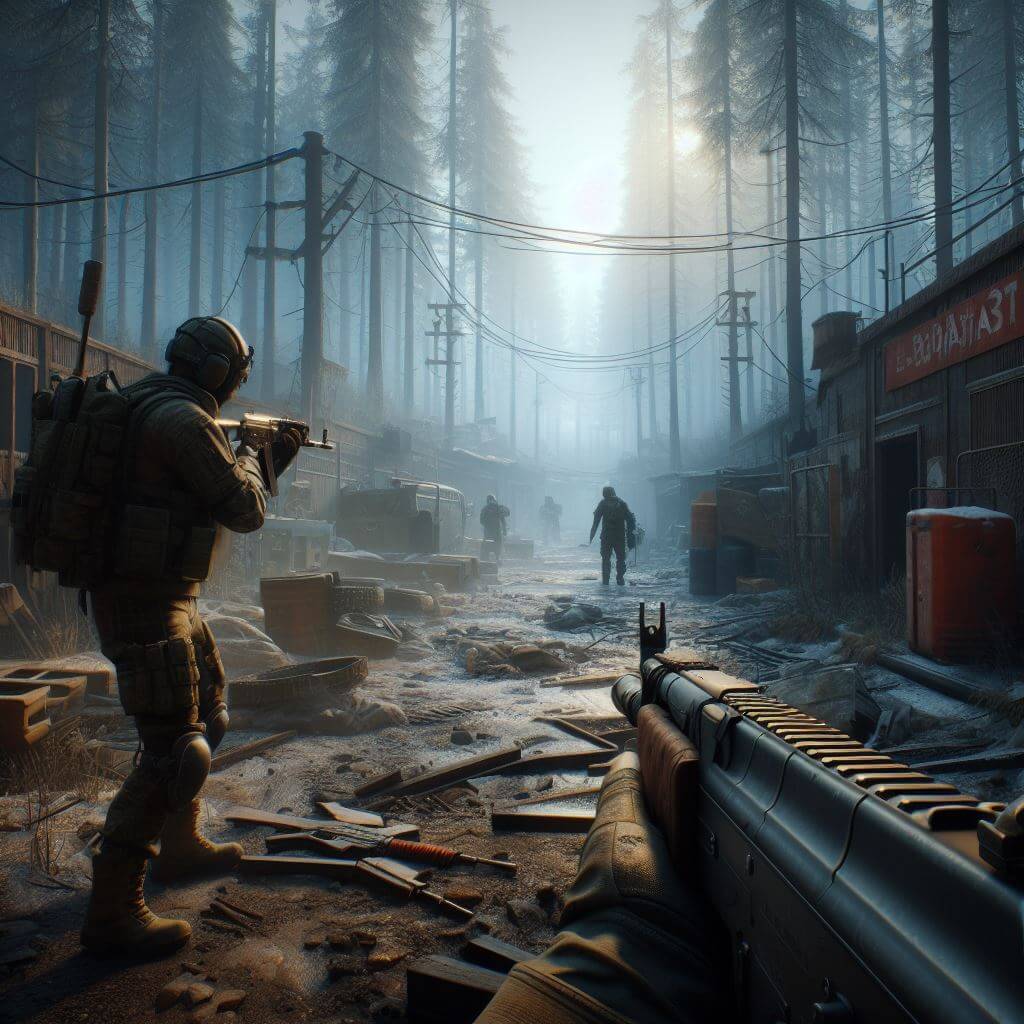 Escape from Tarkov u-turns on decision to lock "exclusive" PvE mode to a special edition following blacklash [...]
[ Source: Eurogamer ]
 Sand Land (Sony PlayStation 5) - Review [...]
[ Source: Digitally Downloaded ]
 Formula Circus, Unreal Based Grand Prix Sim With Great Game Design, Begins More Focused Development [...]
[ Source: Race Sim Central ]
Millennia Game Review - A Little-known Strategy Gem!
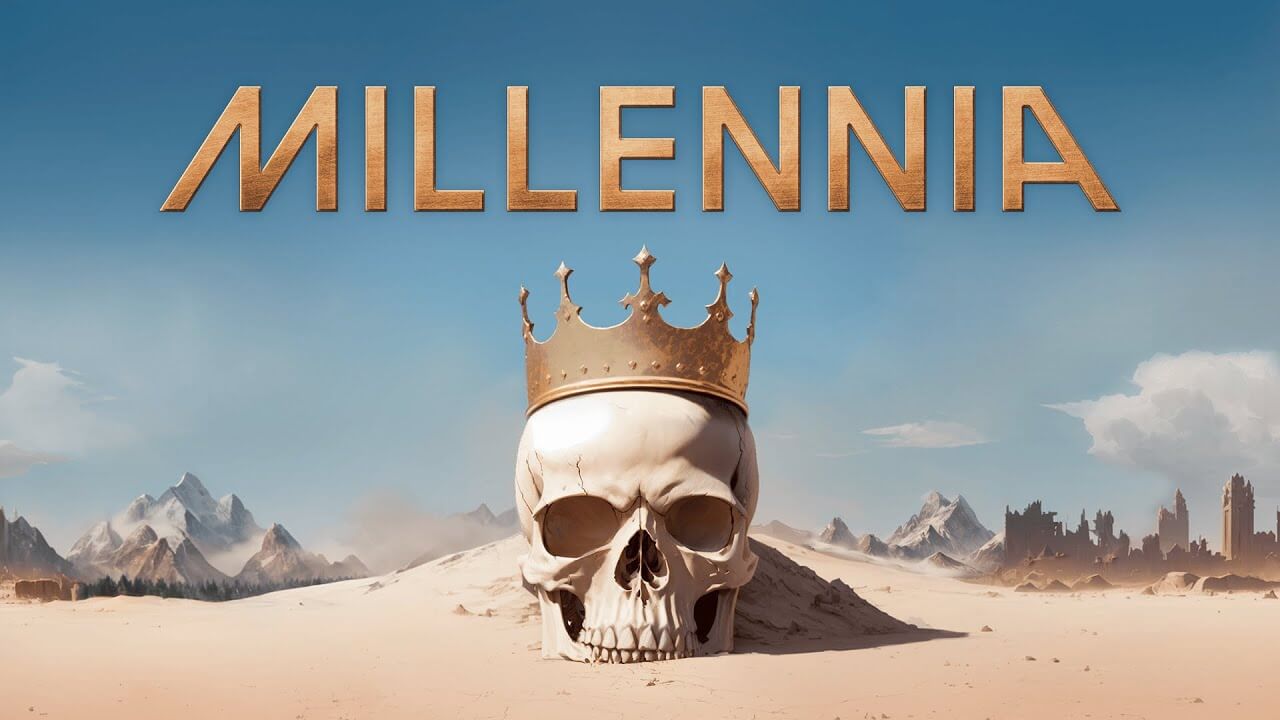
Get ready to embark on an epic journey through the ages with this Millenia Game Review, a turn-based strategy marvel from
Paradox Interactive.
Read more [...]
[ GameTikker ]
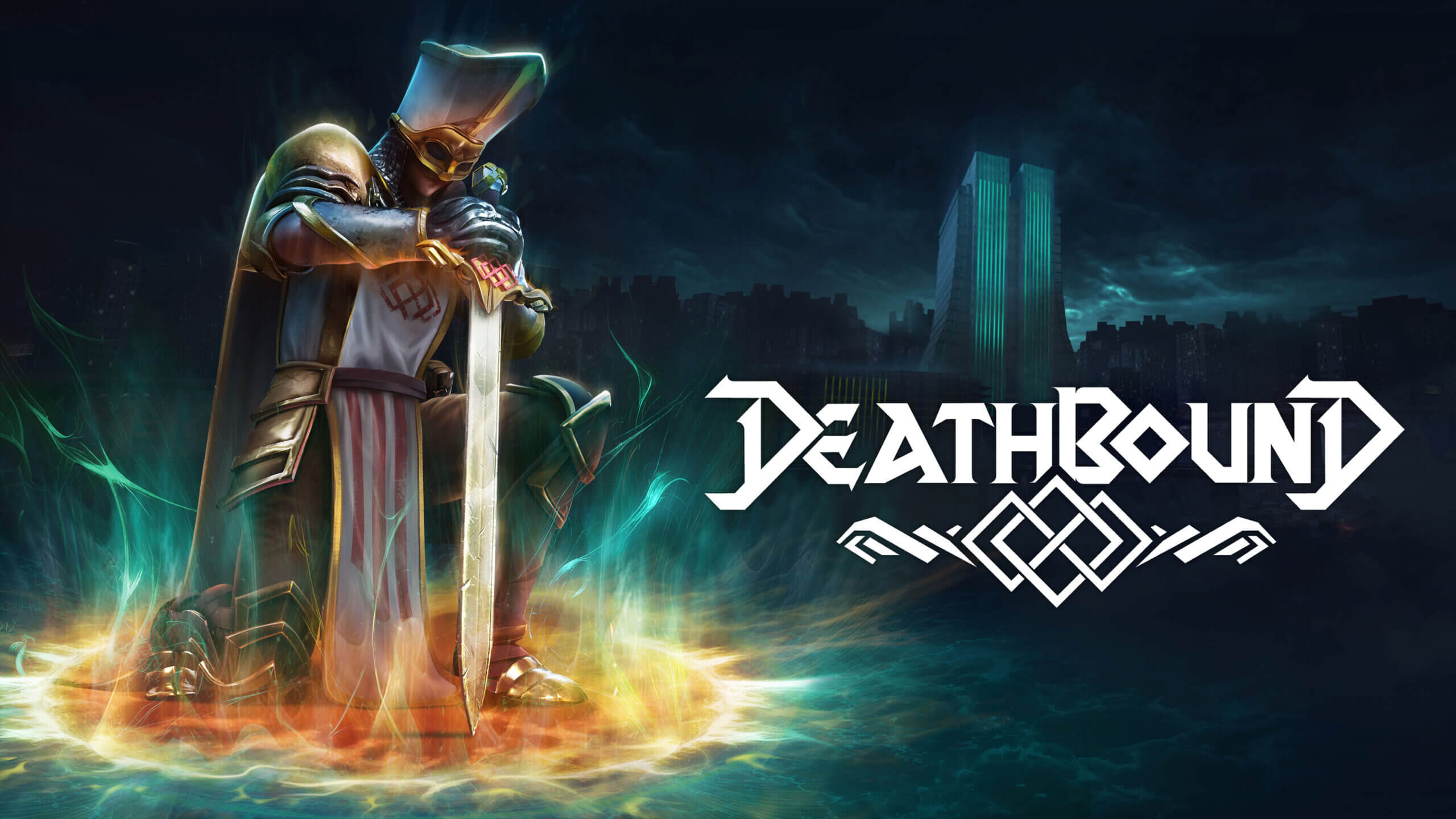 Deathbound Arrives On Consoles And PC In 2024 [...]
[ Source: But Why Tho? ]
 The Ashlands Emerge into Public Playtesting in the New Valheim Trailer [...]
[ Source: GameGrin ]
 League of Legends Superlatives: Balance Change Edition [...]
[ Source: The Game Haus ]
TL;DR Gaming News Today
Goblinz Publishing - Upcoming turn-based exploration Sandwalkers inspired by great
games like For The King, Curious Expedition or Darkest Dungeon! Wishlist now on Steam!
[ Source: GameTikker ]
Switch 2 reportedly replaces slide-in Joy-Cons with magnetic attachment [...][ Source: Ars Technica ]
Discover "No Rest for the Wicked" Action RPG from the creators of "Ori and the Blind Forest" [...][ Source: MadInfinite ]
 Demon Slayer -Kimetsu no Yaiba- Sweep the Board - out today on Switch [...]
[ Source: God is a Geek ]
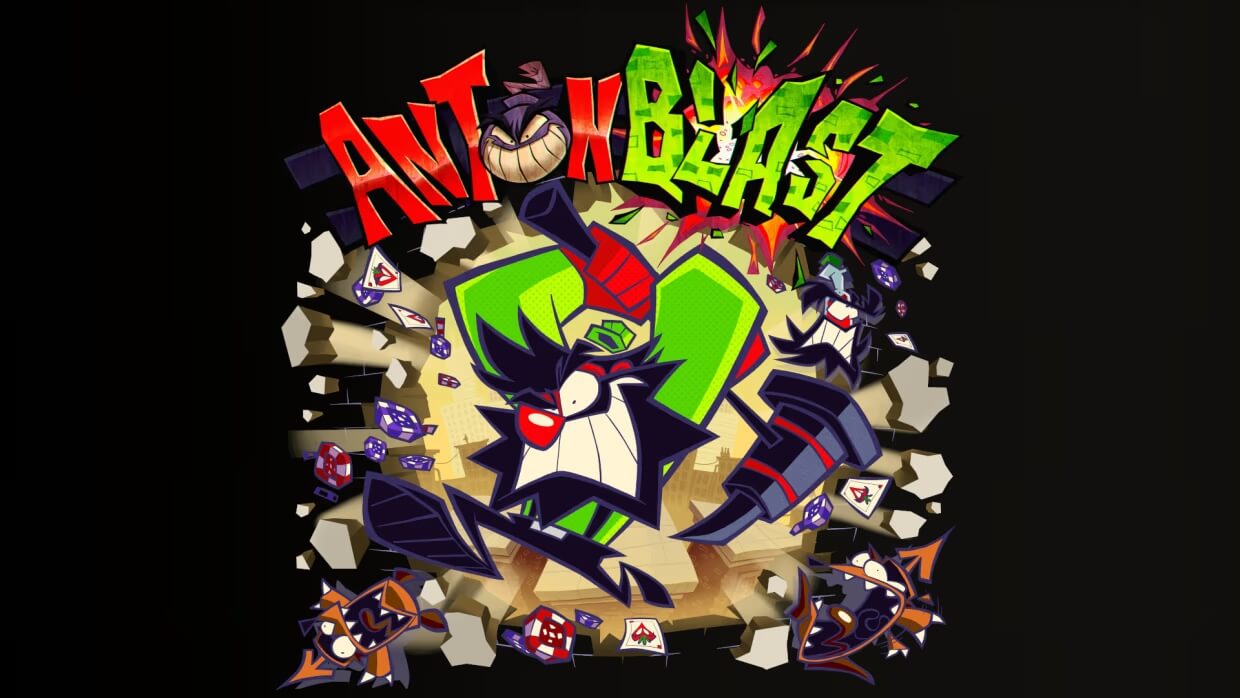 Antonblast Nintendo Switch Demo Impressions [...]
[ Source: Exophase ]
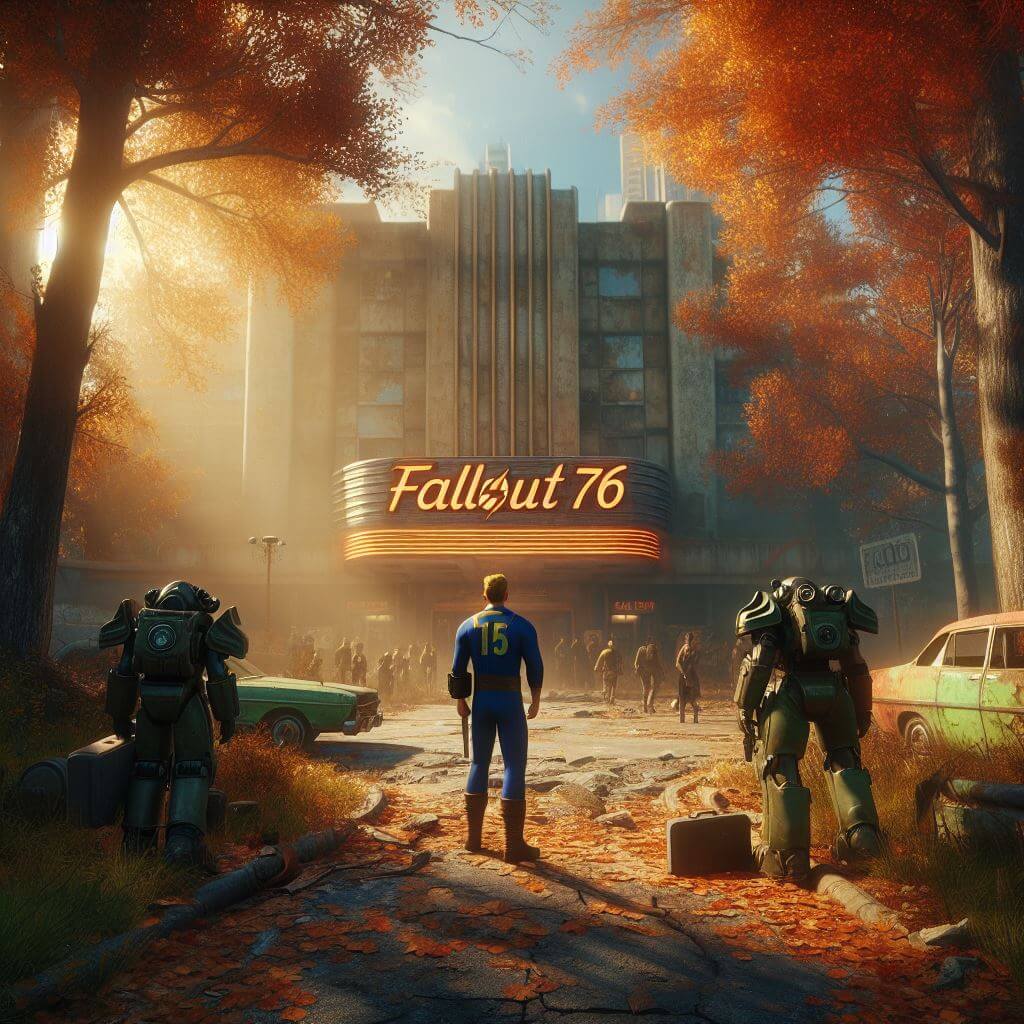 Six Years After Flopping, Fallout 76 is Bigger Than Ever, Far Bigger [...]
[ Source: Gfinity Esports ]
Stellar Blade is the most stimulating game of the year - Review [...][ Source: MobileSyrup ]
TL;DR Gaming News Today
Flatline Studios - Into The Grid is the ultimate Cyberpunk Deckbuilder & Tabletop hybrid,
mixing immersive card battles and tactical map exploration! Wishlist today & join the playtest!
[ Source: GameTikker ]
 New Splinter Cell rumored to use ray tracing with in-game mechanics [...]
[ Source: Game Whisper ]
 The Next Minecraft Update Officially Got Its Name [...]
[ Source: Gameranx ]
 Fallout 4's Next-Gen Update Sounds Like It's One Big Rushed Mess [...]
[ Source: DualShockers ]